Saved Notes
View and manage your saved Notes Queries. When you build a Notes Query and save it, it appears in the Saved Notes section for quick access and future reference.
What is a Saved Notes Query?
A Saved Notes Query is a search configuration that you have created and saved in the Notes Explorer. When you build a query with specific search criteria (keywords, conditions, filters) and save it, it becomes available in the Saved Notes section. This allows you to:
- Quickly access previously built queries without recreating them
- View results from your saved search configurations
- Edit and refine existing queries
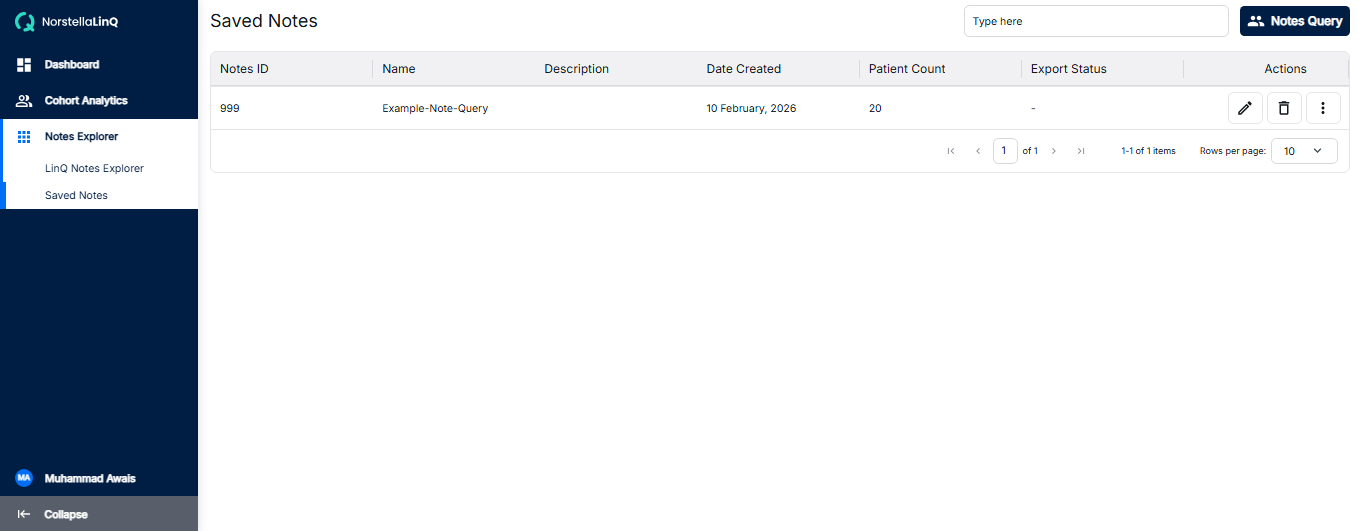
Saved Notes Query - Detailed view with query parameters
How to Access Saved Notes
You can access your saved notes in two ways:
- From Notes Explorer: Click on Notes Explorer in the sidebar, then navigate to Saved Notes
- Direct Navigation: Navigate directly to LinQ and access the Saved Notes section
Creating a New Notes Query
To create a new Notes Query that will appear in Saved Notes:
- Go to Notes Explorer from the sidebar
- Click the Note Query button on the top right of the interface
- Fill in the query details and search criteria
- Click Build to execute the query
- Click Save to save the query for future access
Managing Saved Notes
- View: Click on any saved query to view its results and details
- Edit: Modify the query parameters and re-run the search
- Delete: Remove queries you no longer need
To learn how to build and view Notes Queries, click on the card below: