SOW (Statement of Work)
SOW (Statement of Work) allows you to submit a request for data extraction from your cohort. Complete the form to specify your data requirements, delivery preferences, and other details. Once submitted, a team member will contact you regarding pricing and next steps.
SOW Interface
The SOW interface is accessed by clicking on the "SOW" tab in the Cohort Analytics navigation bar. The interface displays your cohort name at the top with the form below.
Navigation Tabs
The navigation bar provides access to the following views:
- Linked Cohort: View patient counts from multiple data sources
- Patient Demographics: Analyze patient demographic information
- Line Of Therapies: Review treatment line information
- SOW: Submit data extraction requests (current tab)
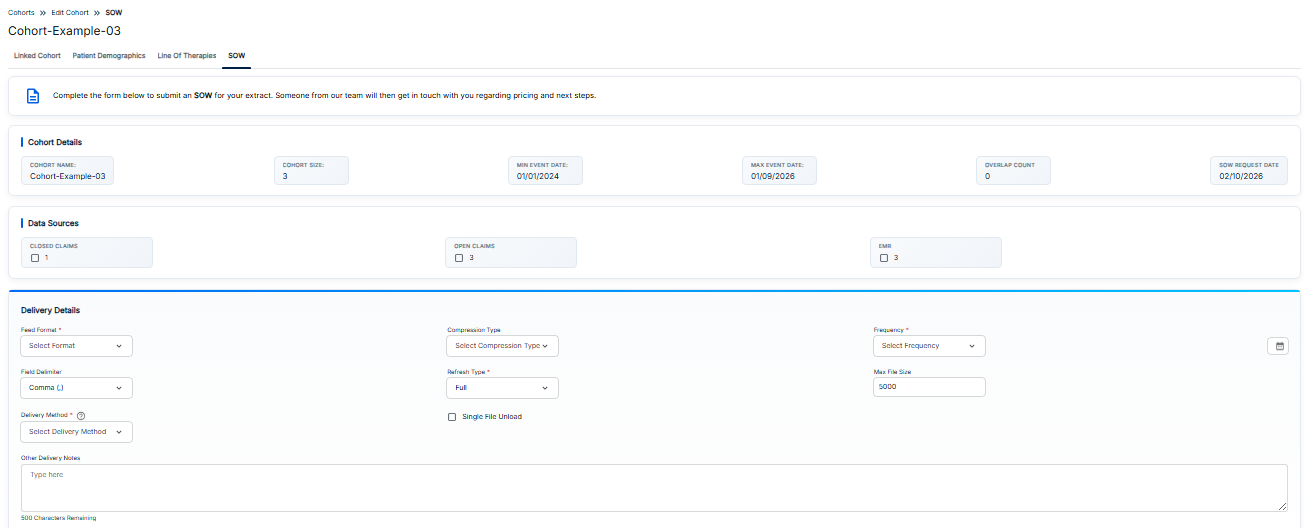
SOW - Statement of Work Request Form
Introductory Message
At the top of the form, you'll see an informational message: "Complete the form below to submit an SOW for your extract. Someone from our team will then get in touch with you regarding pricing and next steps."
Cohort Details Section
The Cohort Details section displays read-only information about your selected cohort:
- COHORT NAME: The name of the cohort
- COHORT SIZE: The total number of unique patients in the cohort
- MIN EVENT DATE: The earliest event date in the cohort data
- MAX EVENT DATE: The latest event date in the cohort data
- OVERLAP COUNT: The number of overlapping patients or events
- SOW REQUEST DATE: The date when the SOW request is being created
Data Sources Section
The Data Sources section allows you to select which data sources to include:
- CLOSED CLAIMS: Checkbox to include closed insurance claims data
- OPEN CLAIMS: Checkbox to include open insurance claims data
- EMR: Checkbox to include Electronic Medical Records data
Delivery Details Section
The Delivery Details section contains configuration options:
Required Fields (marked with *)
- Feed Format*: Select the data format (CSV, JSON, XML, etc.)
- Frequency*: Select delivery frequency (Daily, Weekly, Monthly, One-time)
- Refresh Type*: Select Full refresh or Incremental update
- Clients*: Select the client or organization
- Delivery Method*: Select how data will be delivered (SFTP, API, Email, etc.)
Optional Fields
- Compression Type: Select compression format (ZIP, GZIP, None)
- Field Delimiter: Select delimiter (Comma, Tab, Pipe, Semicolon)
- Max File Size: Specify maximum file size in MB
- Single File Unload: Checkbox for single vs. multiple files
- Other Delivery Notes: Additional instructions (up to 500 characters)
Key Features
- Cohort Information: Automatically populated cohort details
- Data Source Selection: Choose Claims and EMR data sources
- Flexible Delivery Options: Configure format, frequency, and delivery method
- File Configuration: Set file size limits and delimiters
- Request Tracking: SOW request date is automatically recorded
How to Submit an SOW
- Navigate to the Cohort Analytics section and select a cohort
- Click on the "SOW" tab
- Review the Cohort Details section
- Select data sources in the Data Sources section
- Configure Delivery Details:
- Select Feed Format, Frequency, Refresh Type
- Choose Clients and Delivery Method
- Set optional fields as needed
- Review all selections
- Submit the form
- Wait for team contact regarding pricing and next steps
Best Practices
- Review cohort details before submitting
- Select only the data sources you need
- Choose appropriate delivery frequency for your needs
- Use the notes field for special instructions
- Be prepared to discuss pricing when contacted by the team