Edit a Cohort
Edit an existing cohort to modify its inclusion and exclusion criteria. Access the Edit function from the Actions column in the All Cohorts Table View.
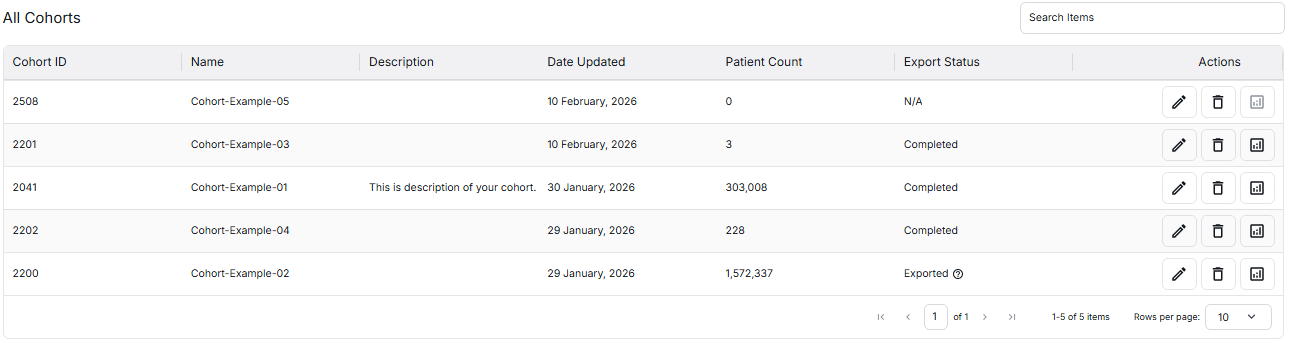
All Cohorts Table View - Click the Edit icon in the Actions column
How to Edit a Cohort
- Go to Dashboard: Navigate to the Dashboard from the sidebar
- Locate Your Cohort: Find the cohort you want to edit in the All Cohorts Table
- Click the Edit Icon: In the Actions column, click the Edit icon (pencil icon)
- Modify Criteria: Update inclusion and/or exclusion criteria as needed
- Build and Save: Click Build to regenerate results, then Save your changes
Actions Column
The Actions column in the cohort table provides three icons:
- Edit (Pencil Icon): Opens the Cohort Builder to modify inclusion and exclusion criteria
- Delete (Trash Icon): Removes the cohort from the system
- Analyze (Chart Icon): Navigate to deep analytics (Linked Cohort, Patient Demographics, Line of Therapies, SOW)
What You Can Edit
When editing a cohort, you can modify:
- Inclusion Criteria: Add, remove, or modify criteria that patients must meet
- Exclusion Criteria: Add, remove, or modify criteria to exclude patients
- Criteria Values: Update operators, values, and data source selections
- Logical Operators: Change AND/OR connections between criteria
After Editing
Once you save your edits:
- The cohort will be updated with the new patient count
- The Date Updated will reflect the current date
- The cohort will move to the top of the table (sorted by most recent)
- You can use the Analyze icon to view updated analytics
For more information, click on the cards below: