Note Query Build Result
After building and saving a Notes Query, you can view the results including patient demographics specific to your notes search. This page shows what you see after your query has been executed.
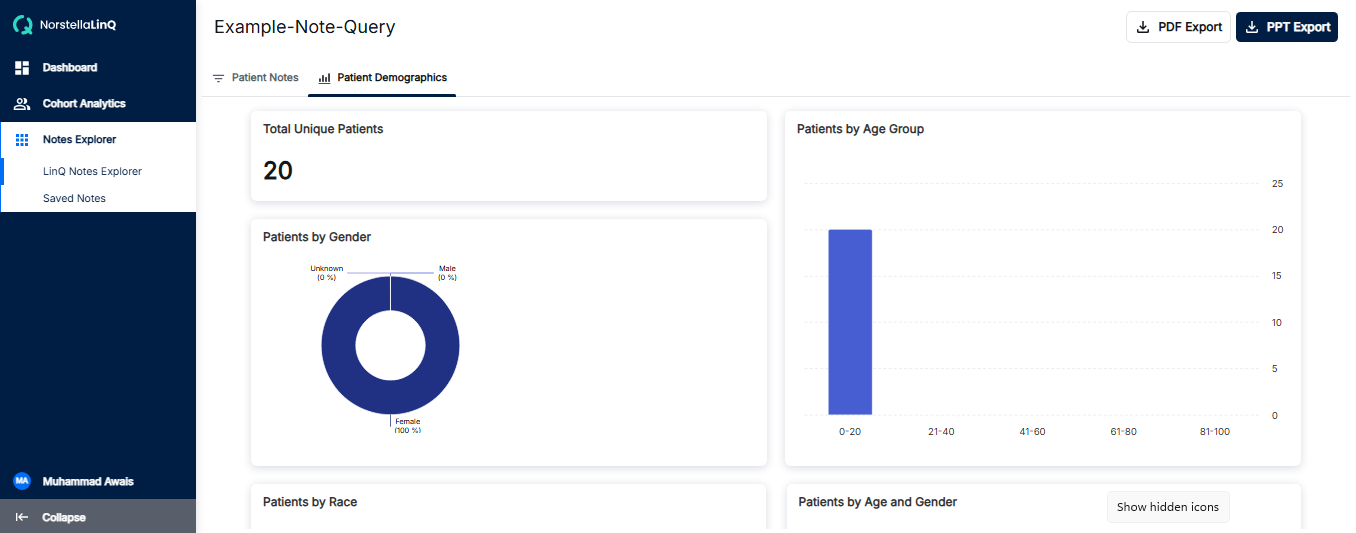
Note Query Build Result - View patient demographics from your notes search
Understanding Your Query Results
After you save and run a Notes Query, the results page displays patient information based on the clinical notes that matched your search criteria. This is specific to Notes Explorer and is different from Cohort Analytics demographics.
What You Can See in the Results
The Note Query Build Result page provides:
- Patient Count: Total number of unique patients whose notes matched your query
- Notes Matched: Total number of clinical notes containing your search terms
- Patient Demographics: Age, gender, and other demographic information for matched patients
- Note Extracts: Preview of the actual clinical notes with highlighted keywords
Viewing Patient Demographics for Notes
The demographics section shows statistical breakdowns of patients whose clinical notes matched your search criteria:
- Age Distribution: How patients are distributed across age groups
- Gender Breakdown: Male/Female distribution of matched patients
- Race/Ethnicity: Demographic distribution based on available data
- Geographic Data: Location information if available
How to Get Here
- Go to Notes Explorer from the sidebar
- Create a new Notes Query with your keywords and filters
- Click Save to save your query
- Click Run (▶) to execute the query
- View your results including patient demographics
Exporting Results
You can export your query results for further analysis:
- Download Patient IDs: Export the list of matching patient identifiers
- Export Demographics: Download demographic data in various formats
- Copy Note Extracts: Copy individual note content to clipboard