Main Tabs Navigation
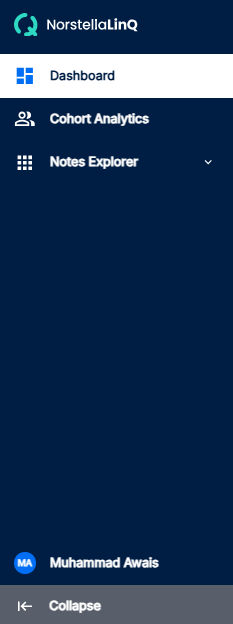
The NorstellaLinQ application has 3 main tabs along with sub-tabs. You can access them from the left sidebar as shown in the screenshots below.

Sidebar Features
The left sidebar includes the following features:
- Profile View: Access your user profile, settings, and account information from the sidebar
- Collapse/Expand Arrow: Click the arrow button to collapse or expand the sidebar for more screen space
Accessing Main Tabs and Sub-Tabs
To access any main tab, simply click on it in the left sidebar. Main tabs contain sub-tabs that expand when you click on the main tab, providing more detailed navigation options. The application includes 3 main tabs:
- Dashboard - Dashboard Overview, Create Cohort from Dashboard, Recent Projects, All Cohorts Table View
- Cohort Analytics - Cohort Analytics Overview, Create a New Cohort, Edit a Cohort
- Notes Explorer - LinQ Notes Explorer Overview, Create a New Notes Query, Note Query Build Result, Saved Notes
User Profile & Settings
At the bottom of the sidebar, you'll find:
- User Profile: Shows your username and provides access to account settings
- Collapse Button: Click to collapse the sidebar for more screen space (shown as arrow icon)
Navigation Cards
For more details about each tab, you can navigate to the corresponding cards in the documentation. Under application navigation, you can navigate to the sidebar to access all main tabs and their sub-tabs.