All Cohorts Table View
The All Cohorts Table View provides a comprehensive list of all your cohorts in a tabular format. This view allows you to quickly see cohort details, manage cohorts, and access analytics.
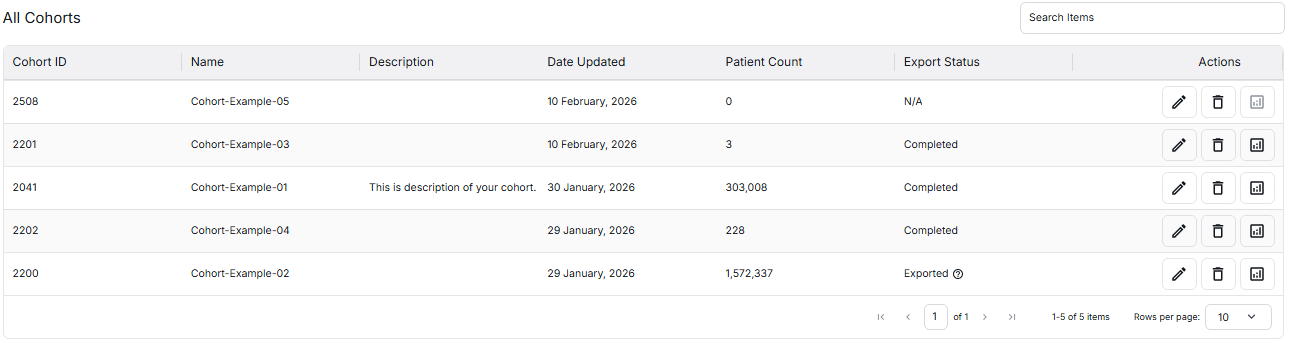
Table Columns
The cohort table displays the following information for each cohort:
- Cohort ID: A unique identifier assigned to each cohort
- Name: The cohort name (e.g., "Cohort-Example-01", "Cohort-Example-02")
- Description: A brief description of the cohort's purpose or criteria
- Date Updated: The date when the cohort was last modified
- Patient Count: The total number of patients in the cohort
- Export Status: The current status of data export for the cohort
- Actions: Available operations for managing the cohort
Export Status
The Export Status column indicates the current state of your cohort data export:
- Completed: The export has been successfully completed and data is ready
- Requesting: The export is currently in progress
- Pending: The export request is queued and waiting to be processed
- Failed: The export failed due to a technical issue - you can try again
- N/A: Export is not available - data may be too large, contact support
Actions
Each cohort row includes action icons for quick management:
- Edit: Modify the cohort's inclusion and exclusion criteria
- Delete: Remove the cohort from the system
- Analyze: Navigate to deep analytics details for the cohort
Analyze Action - Navigating to Deep Analytics
The Analyze icon is an important action that allows you to navigate to detailed analytics for your cohort. When you click the Analyze icon, you will be taken to the Cohort Analytics view where you can access the following tabs:
- Linked Cohort: View the cohort funnel showing patient counts across data sources and linked relationships
- Patient Demographics: Analyze patient population characteristics including age, gender, and geographic distribution
- Line Of Therapies: Explore treatment patterns, therapy lines, and medication sequences
- SOW: Create and manage Statement of Work requests for data extracts and deliveries
How to Navigate to Analytics
- Go to the Dashboard and locate the All Cohorts Table View
- Find the cohort you want to analyze in the table
- Click the Analyze icon in the Actions column
- You will be navigated to the Cohort Analytics page
- Use the tabs (Linked Cohort, Patient Demographics, Line Of Therapies, SOW) to explore different analytics views
Quick Tips
- The Analyze action is only available for cohorts with valid data
- Check the Export Status before analyzing - Completed status ensures full data availability
- You can return to this table view from any analytics page to select a different cohort
For more information about cohort analytics and management, click on the cards below: