All Cohorts Table View
The All Cohorts Table View displays a comprehensive list of all your cohorts, sorted by date. From this table, you can manage, analyze, and export your cohorts.
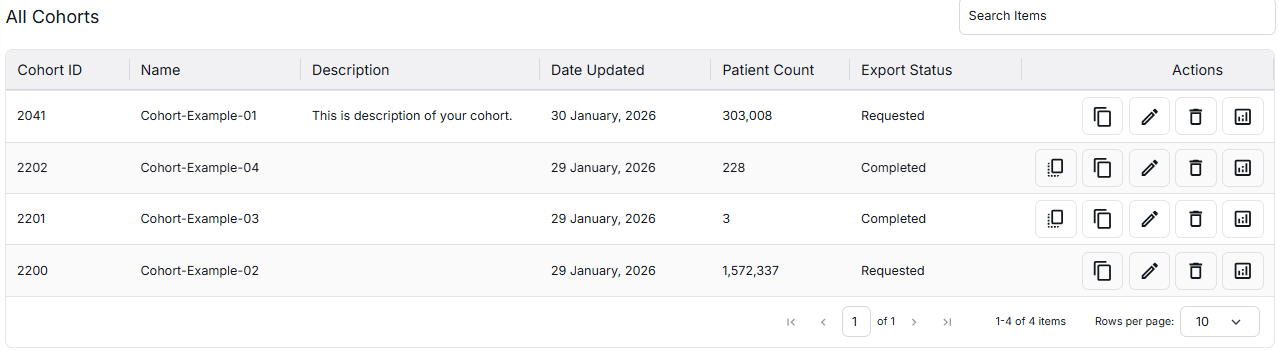
Table Columns
The table includes various columns that provide information about each cohort:
- Cohort Name: The name of the cohort
- Created Date: When the cohort was created
- Export Status: Current status of the export process
- Actions: Available actions for each cohort
Copy Icons
Each cohort row includes two copy icons:
- Copy SQL Query: Copies the SQL query used to generate the cohort
- Copy Query: Copies the query parameters for the cohort
Export Status
The export status can have one of four values:
- Completed: The export has been successfully completed
- Requesting: The export is still in process
- N/A: The data is too large and requires a separate request - contact support
- Failed: The export request failed due to a technical issue - you can try again
Actions
The Actions column provides three main operations:
- Delete: Remove the cohort from the system
- Edit: Modify the cohort's criteria and settings
- Analyze: Navigate to the deep analytics view (available for Completed and Requesting statuses)
Analyze Action
When you click the "Analyze" button for a cohort with Completed or Requesting status, you will be navigated to a comprehensive analytics view where you can explore:
- Funnel Details
- Patient Demographics
- Event Analytics
- Line of Therapy
- SOW (Statement of Work)
- Various reports generated for the cohort
Note: If you update a cohort, it will move to the top of the table, sorted by the most recent modification date.