Linked Cohort
Linked Cohort functionality allows you to connect and analyze relationships between multiple cohorts and data sources. This feature provides a comprehensive view of patient populations across different data providers, including claims data, EMR records, and laboratory results, enabling you to perform integrated analyses.
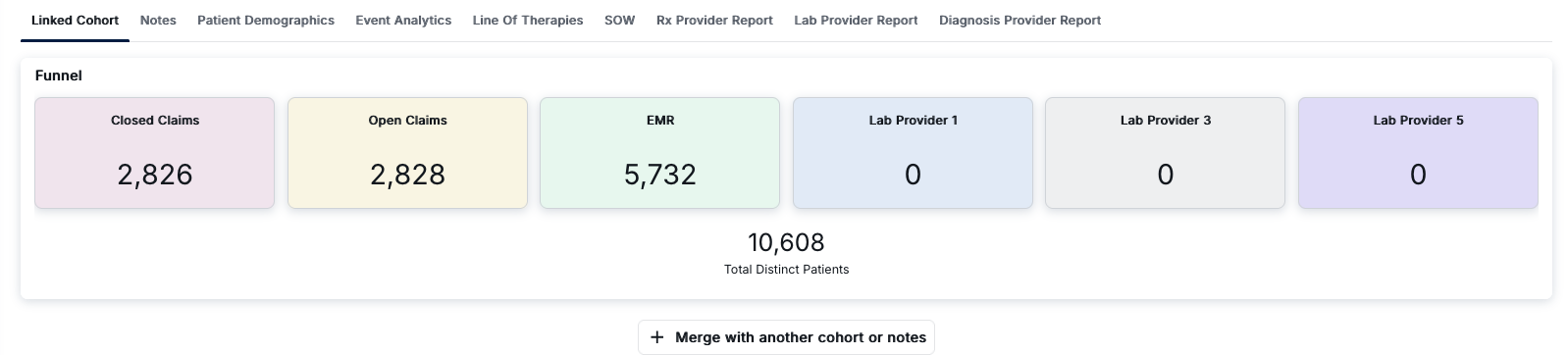
Linked Cohort Interface
The Linked Cohort interface provides access to multiple analytical views through a tabbed navigation system. When you select the "Linked Cohort" tab, you'll see the Funnel view, which displays patient counts from various connected data sources.
Navigation Tabs
The top navigation bar provides access to different analytical views:
- Linked Cohort: View patient counts from multiple data sources in the Funnel view
- Notes: Access clinical notes and documentation
- Patient Demographics: Analyze patient demographic information
- Event Analytics: Explore event-based analytics
- Line Of Therapies: Review treatment line information
- SOW: Access Statement of Work reports
- Rx Provider Report: View prescription provider reports
- Lab Provider Report: Access laboratory provider reports
- Diagnosis Provider Report: Review diagnosis provider reports
The Funnel View
The Funnel section provides a visual overview of patient counts from different data sources. Each data source is displayed as a separate colored card showing the patient count for that specific source:
- Closed Claims: Patient count from closed insurance claims data (shown in light pink/lavender)
- Open Claims: Patient count from open insurance claims data (shown in light yellow/cream)
- EMR: Patient count from Electronic Medical Records (shown in light green)
- Lab Provider 1: Patient count from the first laboratory data provider (shown in light blue-grey)
- Lab Provider 3: Patient count from the third laboratory data provider (shown in light grey)
- Lab Provider 5: Patient count from the fifth laboratory data provider (shown in light purple/lavender)
Below the individual data source cards, the Total Distinct Patients count is displayed, representing the combined unique patient population across all linked data sources. This total accounts for patient deduplication across different providers.
Merging Cohorts and Notes
The "+ Merge with another cohort or notes" button at the bottom of the Funnel section allows you to combine this linked cohort with additional cohorts or clinical notes. This functionality enables you to:
- Combine patient populations from multiple cohorts
- Integrate clinical notes data with cohort data
- Create comprehensive patient datasets for analysis
- Expand your analytical scope by merging related data sources
Key Features
- Multi-Source Data Integration: Combine patient data from claims, EMR, and laboratory providers
- Patient Count Visualization: View patient counts from each data source in an intuitive card-based layout
- Total Distinct Patient Calculation: Automatically calculate unique patients across all data sources
- Tabbed Navigation: Access multiple analytical views from a single interface
- Cohort Merging: Combine cohorts and notes to create comprehensive datasets
- Provider-Specific Views: Access provider-specific reports for Rx, Lab, and Diagnosis data
How to Use Linked Cohorts
- Navigate to the Cohort Analytics section and select a cohort
- Click on the "Linked Cohort" tab in the navigation bar
- Review the Funnel view to see patient counts from each data source
- Examine the Total Distinct Patients count to understand the combined patient population
- Use other navigation tabs (Notes, Patient Demographics, Event Analytics, etc.) to access additional analytical views
- Click "+ Merge with another cohort or notes" to combine this cohort with additional data sources
- Select the cohorts or notes you want to merge and configure the merge parameters
Understanding the Data Sources
The Funnel view displays patient counts from various data sources:
- Claims Data: Includes both closed and open insurance claims, providing comprehensive claims-based patient information
- EMR Data: Electronic Medical Records provide clinical documentation and patient encounter information
- Laboratory Providers: Multiple lab providers may contribute data, each shown as a separate card in the Funnel view
The system automatically deduplicates patients across all sources to calculate the total distinct patient count, ensuring accurate population size calculations.
Best Practices
- Review patient counts from each data source to understand data coverage and completeness
- Use the Total Distinct Patients count to understand the true population size after deduplication
- Leverage the merge functionality to combine related cohorts for comprehensive analysis
- Explore different navigation tabs to access various analytical perspectives on your linked cohort
- Document the data sources included in your linked cohort for reproducibility
- Monitor changes in patient counts when merging additional data sources