SOW
SOW (Statement of Work) allows you to submit a request for data extraction from your cohort. Complete the form to specify your data requirements, delivery preferences, and other details. Once submitted, a team member will contact you regarding pricing and next steps.
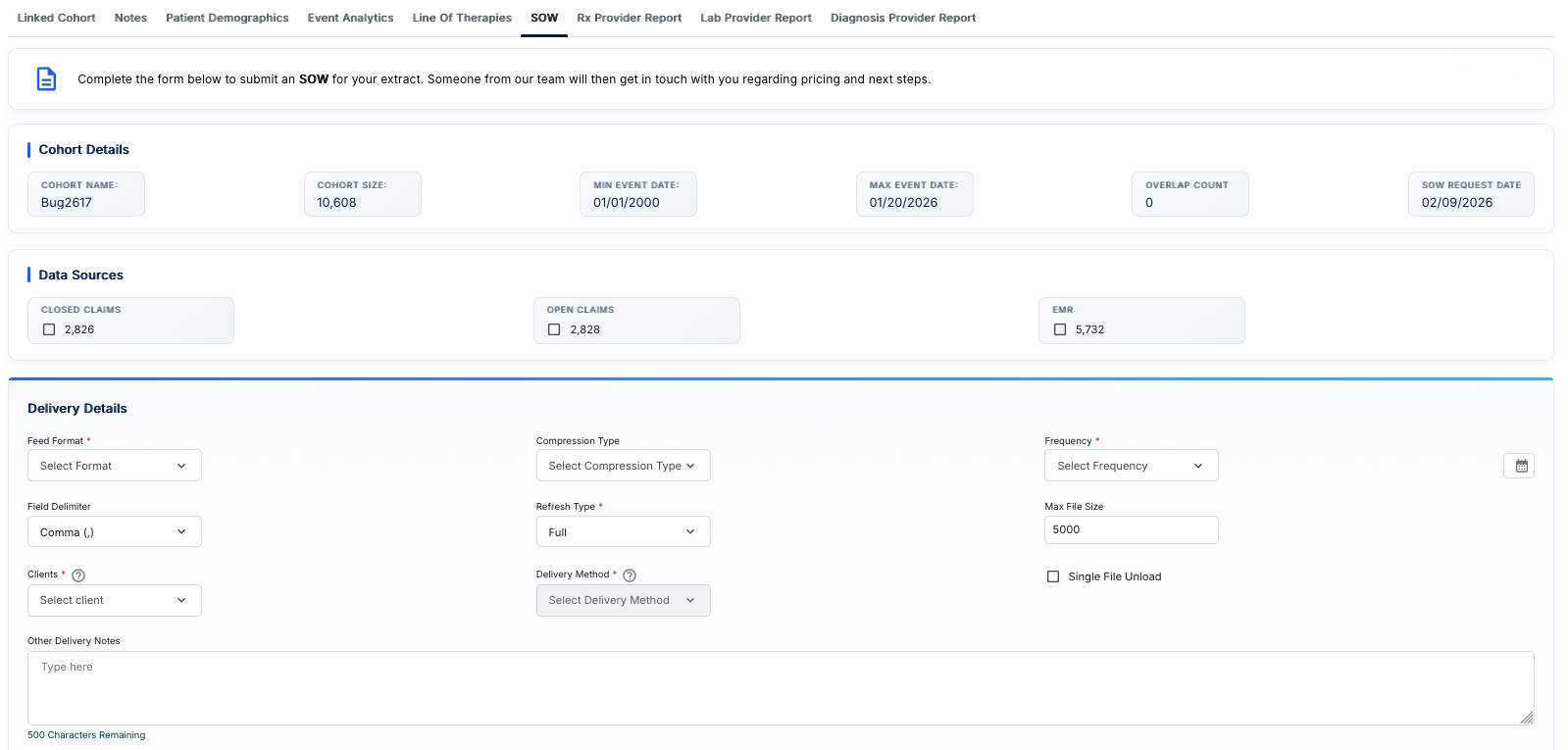

SOW Interface
The SOW interface provides a comprehensive form for submitting data extraction requests. Access this view by clicking on the "SOW" tab in the Cohort Analytics navigation bar. The form is divided into three main sections: Cohort Details, Data Sources, and Delivery Details.
Introductory Message
At the top of the form, you'll see an informational message with a document icon: "Complete the form below to submit an SOW for your extract. Someone from our team will then get in touch with you regarding pricing and next steps."
This message explains the process: after you complete and submit the form, a team member will review your request and contact you to discuss pricing and implementation details.
Cohort Details Section
The Cohort Details section displays read-only information about your selected cohort:
- COHORT NAME: The name of the cohort (e.g., "Bug2617")
- COHORT SIZE: The total number of unique patients in the cohort (e.g., "10,608")
- MIN EVENT DATE: The earliest event date in the cohort data (e.g., "01/01/2000")
- MAX EVENT DATE: The latest event date in the cohort data (e.g., "01/20/2026")
- OVERLAP COUNT: The number of overlapping patients or events (e.g., "0")
- SOW REQUEST DATE: The date when the SOW request is being created (e.g., "02/09/2026")
These details are automatically populated from your cohort and cannot be edited in this form. They provide context for the data extraction request.
Data Sources Section
The Data Sources section allows you to select which data sources to include in your extract. Each data source has a checkbox and displays the patient count for that source:
- CLOSED CLAIMS: Checkbox to include closed insurance claims data (e.g., 2,826 patients)
- OPEN CLAIMS: Checkbox to include open insurance claims data (e.g., 2,828 patients)
- EMR: Checkbox to include Electronic Medical Records data (e.g., 5,732 patients)
Select the checkboxes for the data sources you want included in your extract. You can select one or multiple data sources depending on your requirements.
Delivery Details Section
The Delivery Details section contains configuration options for how the data will be delivered:
Required Fields (marked with *)
- Feed Format*: Dropdown to select the data format (e.g., CSV, JSON, XML, etc.)
- Frequency*: Dropdown to select how often the data should be delivered (e.g., Daily, Weekly, Monthly, One-time) with a calendar icon for date selection
- Refresh Type*: Dropdown to select whether the extract is a "Full" refresh or "Incremental" update
- Clients*: Dropdown to select the client or organization that will receive the data, with a question mark icon for additional information
- Delivery Method*: Dropdown to select how the data will be delivered (e.g., SFTP, API, Email, etc.), with a question mark icon for additional information
Optional Fields
- Compression Type: Dropdown to select compression format (e.g., ZIP, GZIP, None)
- Field Delimiter: Dropdown to select the delimiter for delimited file formats (e.g., "Comma (,)", "Tab", "Pipe (|)", "Semicolon (;)")
- Max File Size: Input field to specify the maximum file size in MB (e.g., "5000" for 5GB)
- Single File Unload: Checkbox to indicate whether all data should be in a single file or split across multiple files
- Other Delivery Notes: Multi-line text area for additional delivery instructions or special requirements. A character counter shows "500 Characters Remaining" to help you stay within the limit.
Understanding SOW
SOW functionality helps you document and report on your cohort analysis work, including the scope of the analysis, methodology used, key findings, and data exports. This is essential for research documentation, regulatory compliance, and sharing results with stakeholders.
Key Features
- Cohort Information Display: Automatically populated cohort details including name, size, and date ranges
- Data Source Selection: Choose which data sources (Claims, EMR) to include in your extract
- Flexible Delivery Options: Configure format, frequency, compression, and delivery method
- File Configuration: Set file size limits, delimiters, and single vs. multi-file options
- Client Selection: Specify which client or organization will receive the data
- Additional Notes: Provide special instructions or requirements in the delivery notes field
- Request Tracking: SOW request date is automatically recorded for tracking purposes
How to Submit an SOW
- Navigate to the Cohort Analytics section and select a cohort
- Click on the "SOW" tab in the top navigation bar
- Review the Cohort Details section to verify the cohort information is correct
- In the Data Sources section, check the boxes for the data sources you want included:
- Select CLOSED CLAIMS if you need closed insurance claims data
- Select OPEN CLAIMS if you need open insurance claims data
- Select EMR if you need Electronic Medical Records data
- In the Delivery Details section, configure your delivery preferences:
- Select the Feed Format* (required)
- Choose Compression Type if needed
- Select Frequency* and use the calendar icon to set dates (required)
- Choose Field Delimiter for delimited formats
- Select Refresh Type* (Full or Incremental) (required)
- Set Max File Size if you have size constraints
- Select Clients* from the dropdown (required)
- Choose Delivery Method* (required)
- Check Single File Unload if you want all data in one file
- Add any Other Delivery Notes with special instructions (up to 500 characters)
- Review all selections to ensure accuracy
- Submit the form (typically a "Submit" or "Send Request" button at the bottom)
- Wait for a team member to contact you regarding pricing and next steps
SOW Request History
The SOW Request History table displays all previous SOW requests for your cohorts, allowing you to view, manage, and track the status of your data extraction requests.
Action Buttons
At the top of the history table, you'll find action buttons:
- Delete: Button (with light blue background when selected) to delete selected SOW requests
- Reset: Button (white background with dark border) to reset form fields or clear selections
- Update: Button (light gray background with dark border) to update selected SOW requests
Table Columns
The SOW Request History table includes the following columns:
- Cohort ID: Unique numerical identifier for the cohort
- Cohort Name: Name of the cohort (clickable, highlighted in blue when active)
- Cohort Size: Total number of patients in the cohort
- SOW Request Date: Date when the SOW request was submitted (may be editable, indicated by gray background)
- Data Sources Requested: Abbreviations for selected data sources:
- CC: Closed Claims
- OC: Open Claims
- EMR: Electronic Medical Records
- Feed Format: Selected data format (e.g., JSON, CSV, XML)
- Frequency: Delivery frequency configuration (may show encoded values like "25 17 9 2*" or "0 0**0")
- Delivery Method: How the data is delivered (e.g., "S3 Bucket", "SFTP")
- Notes: Additional notes or comments from the request (e.g., "SOW Request")
- Status: Current status of the request:
- active: Request is currently active and being processed
- inactive: Request is no longer active
- Sent to Cobalt: Yes/No indicator showing whether the request has been sent to the Cobalt system
Using the History Table
The history table allows you to:
- View Past Requests: See all previous SOW requests for your cohorts
- Track Status: Monitor which requests are active or inactive
- Review Configuration: Review delivery methods, formats, and data sources from previous requests
- Manage Requests: Use Delete, Reset, and Update buttons to manage your SOW requests
- Navigate to Cohorts: Click on cohort names (highlighted in blue) to navigate to the cohort details
The table includes a scrollbar, indicating that multiple requests may be present. You can scroll through the history to view all your SOW requests.
Understanding Delivery Options
The delivery configuration options allow you to customize how your data extract will be provided:
- Feed Format: Determines the file structure and encoding of your data extract
- Compression Type: Reduces file size for faster transfer and storage efficiency
- Frequency: Defines how often you'll receive updated extracts (one-time, daily, weekly, monthly)
- Field Delimiter: Specifies how fields are separated in delimited file formats
- Refresh Type: Full refresh replaces all data, while incremental updates only include new/changed records
- Max File Size: Helps manage large datasets by splitting files when they exceed the specified size
- Delivery Method: Determines how files are transferred (SFTP, API, secure download, etc.)
- Single File Unload: Controls whether data is split across multiple files or consolidated into one file
Best Practices
- Review cohort details carefully before submitting to ensure you're requesting data for the correct cohort
- Select only the data sources you actually need to avoid unnecessary data and costs
- Choose appropriate delivery frequency based on your actual update needs
- Specify clear delivery notes if you have special requirements or constraints
- Use the question mark icons next to "Clients" and "Delivery Method" for additional information if needed
- Set realistic file size limits based on your system's capabilities
- Consider using compression for large datasets to reduce transfer time
- Document any special requirements in the "Other Delivery Notes" field
- Keep track of your SOW request date for follow-up purposes
- Be prepared to discuss pricing and timeline when contacted by the team