Create a New Cohort
Creating a new cohort allows you to build a patient population based on specific criteria. You can define inclusion criteria, exclusion criteria, search criteria, and selection criteria to create a targeted patient cohort for analysis.
Cohort Builder Interface
The Cohort Builder interface provides a comprehensive workspace for defining your patient cohort. The interface is organized into two main sections: Inclusion Criteria and Exclusion Criteria. Each section allows you to add multiple criteria and group them together to create complex patient selection rules.
The header toolbar provides access to various controls including data source selection, date range filtering, save functionality, and additional actions like bookmarking, creating new documents, running the cohort, and managing user access.
Inclusion Criteria
The Inclusion Criteria section (indicated by a green border) defines the conditions that patients must meet to be included in your cohort. Each criterion row includes:

- Drag Handle: Six dots icon on the left to reorder criteria
- Criterion Type: Dropdown to select the type (e.g., ICD-CM, CPT-4, NDC, Patient Gender, EMR Notes)
- Operator: Dropdown to select the logical operator (e.g., "contains", "less than", "equals")
- Value Field: Input area to specify the criterion values
- Patient Count: Shows how many patients match this individual criterion
- Logical Connector: Dropdown (typically "AND" or "OR") to connect multiple criteria
- Remove Button: X icon to delete the criterion
You can add multiple criteria and connect them with AND/OR logic. All inclusion criteria must be met (when using AND) or at least one must be met (when using OR) for a patient to be included.
Exclusion Criteria
The Exclusion Criteria section (indicated by a red border) defines conditions that will exclude patients from your cohort, even if they meet the inclusion criteria. This allows you to refine your patient population by removing specific subsets.

Similar to the Inclusion Criteria section, the Exclusion Criteria section starts with an empty state showing a prompt to "Add a criteria to get started". You can add exclusion criteria by clicking the "+ Add criteria" button for a single criterion, or use the "+ Add group" button to create a group of exclusion criteria with logical operators for more complex filtering.
Steps to Create a Cohort
- Navigate to Cohort Analytics from the main navigation
- Click on "Create a New Cohort" or use the "New Cohort" button from the Dashboard
- Define your inclusion criteria (patients who meet these conditions)
- Set exclusion criteria (patients to exclude from the cohort)
- Configure search criteria for additional filtering
- Set selection criteria to refine your patient population
- Save your cohort with a descriptive name
Search Cohort Criteria Types
When creating a cohort, you can use various types of criteria organized into the following categories:
- Patient Demographics: Patient, Gender, Age, Death, Race, State, Zip3, Segmentation, Patient History, Import Cohort Block
- Diagnosis: ICD-CM, ICD-CM Simple, ICD-CM Hierarchy
- Procedures: ICD-PCS, CPT-4, CPT-4 Simple, HCPCS
- Drugs/Medications: NDC, ATC Classes
- Laboratory: Result Name & Unit, LOINC
- Clinical Notes: Notes, Notes Cohort
Demographics Criteria
Demographics criteria allow you to filter patients based on personal and geographic characteristics. These criteria are essential for creating targeted cohorts that match specific patient populations.
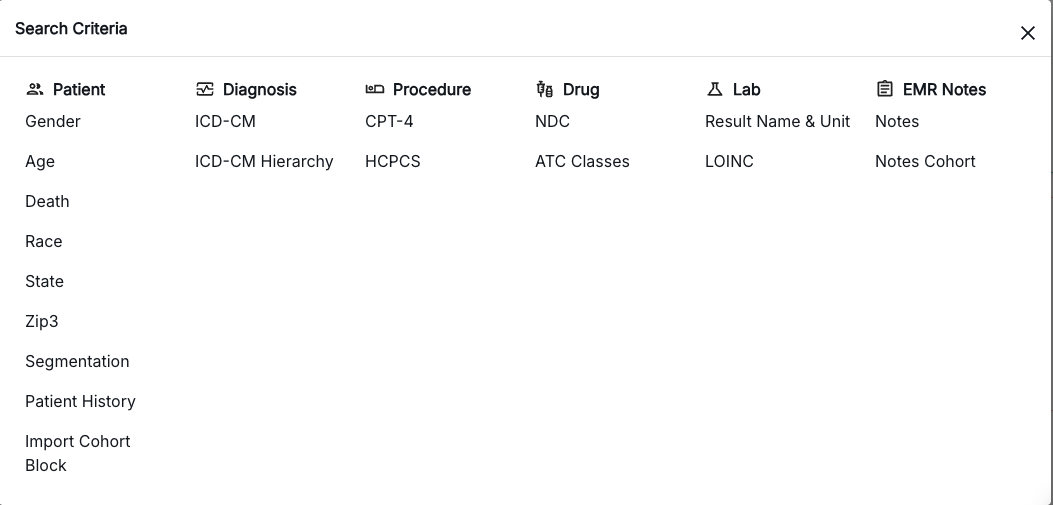
Available Criteria Types
The Search Criteria dropdown provides access to various criteria types organized by category:
Patient Demographics
- Patient: General patient information and identifiers
- Gender: Filter by patient gender (Male, Female, Other, Unknown)
- Age: Filter patients by age ranges or specific age values
- Death: Include or exclude deceased patients
- Race: Filter by patient race/ethnicity
- State: Filter by U.S. state location
- Zip3: Filter by first 3 digits of ZIP code (geographic region)
- Segmentation: Patient segmentation categories
- Patient History: Historical patient data and events
- Import Cohort Block: Import criteria from existing cohorts
Diagnosis Criteria
- ICD-CM: ICD-10-CM diagnosis codes with full functionality
- ICD-CM Simple: Simplified ICD-10-CM code selection
- ICD-CM Hierarchy: ICD-10-CM codes organized in hierarchical structure
Procedure Criteria
- ICD-PCS: ICD-10-PCS procedure codes
- CPT-4: Current Procedural Terminology (CPT-4) codes with full functionality
- CPT-4 Simple: Simplified CPT-4 code selection
- HCPCS: Healthcare Common Procedure Coding System codes
Drug/Medication Criteria
- NDC: National Drug Code for specific medications
- ATC Classes: Anatomical Therapeutic Chemical classification system
Laboratory Criteria
- Result Name & Unit: Laboratory test results by name and unit of measurement
- LOINC: Logical Observation Identifiers Names and Codes for lab tests
Clinical Notes
- Notes: Electronic Medical Record notes and clinical documentation
- Notes Cohort: Cohort-based notes configuration and filtering
Using Demographic Criteria
To add demographic criteria to your cohort:
- Click the "+ Add criteria" button in either the Inclusion or Exclusion criteria section
- Select "Search Criteria" from the dropdown menu
- Choose the specific demographic factor you want to filter (e.g., Gender, Age, State)
- Configure the filter values and conditions
- Save the criterion to apply it to your cohort
Configuring Gender Criteria
When selecting "Patient Gender" as a criterion, you can configure it with the following options:
- Operator: Choose "contains" to include patients matching selected gender values
- Gender Values: Select one or more options from the dropdown:
- Male
- Female
- Unknown
- Multiple Selection: You can select multiple gender options (e.g., both Male and Female) to include patients of either gender
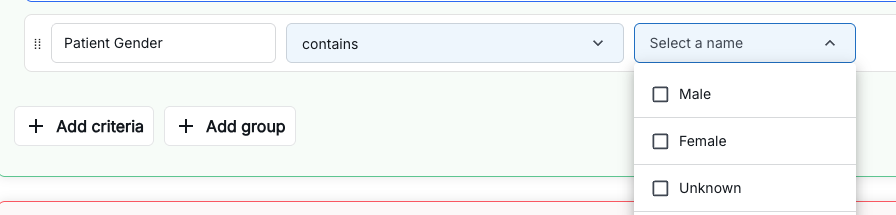
The interface shows a criterion row with "Patient Gender" selected, the "contains" operator, and a dropdown menu where you can select the gender values. You can select multiple options by checking the checkboxes next to each gender value. Once configured, click outside the dropdown or use the remove (X) button to delete the criterion if needed.
Examples of Demographic Filtering
- Age-based cohorts: Include patients aged 18-65 years
- Geographic cohorts: Include patients from specific states or ZIP code regions
- Gender-specific cohorts: Include only male or female patients
- Combined filters: Combine multiple demographics (e.g., Age 50+ AND Female AND specific state)
Quick Steps Summary
- Navigate: Click "Cohort Analytics" in the sidebar
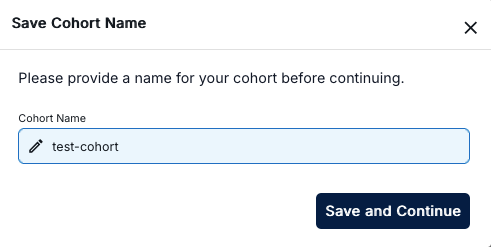
- Name Your Cohort: A popup will appear - enter your cohort name and click Save
- Define Criteria: Add inclusion and exclusion criteria to define your patient population
- Configure Values: Set operators and values for each criterion, including data source selection
- Build & Save: Click the Build button to generate results, then click Save to save your cohort
Action Buttons
The cohort builder interface provides several action buttons to help you manage your cohorts:
- 📑 Bookmark/Pages Icon: Access saved or bookmarked cohorts and view your cohort history
- 💾 Save Icon: Save your current cohort configuration and changes
- ➕ Add/New Icon: Create a new cohort or add new criteria blocks to your current cohort
- ▶️ Build/Play Icon: Execute the cohort build process to generate results based on your defined criteria

Saving Your Cohort
Once you've configured all your criteria, save the cohort with a meaningful name. The saved cohort will appear in your Dashboard and can be accessed for analysis, editing, or further refinement.